 Khanta
Staff Access & PINs
Adding a staff member
Open Settings, then Team, then Add staff. A name is all that's required. If they'll ever need to sign in on their own phone, add their phone number too; if not, leave it blank and use one of the shared-device or device-code paths below instead.
Three ways to get them signed in
Which one applies depends on how you added them, and whether they'll use their own phone or a shop device everyone shares.
Own phone, number on fileSigns in the same way you did, nothing else to set up.
They open Khanta on their phone and go through the same phone-number-and-code screen you used when you first signed up. Khanta recognizes their number and signs them straight into your shop's account, as themselves, nothing else to set up.
Own phone, device codeA one-time code from Settings, used once, expires in 10 minutes.
In Settings, open Add a device, pick their name from "Who is this code for?" and generate a code. Give it to them. On their phone, open Khanta, choose "Have a code from your shop owner?" and enter it. They're signed in as themselves immediately, one time only, and the code stops working after 10 minutes whether it's used or not.
Shared shop deviceTap their name under Settings, then Team, when their shift starts.
No code needed. Add the staff member (a name is enough), then have them tap their own name under Open Settings, then Team, on that shared device whenever their shift starts. If you've set a PIN for them (next section), it'll ask for it.
"Add a device" without picking a name from that same screen still exists too; that's for adding a second device you also own (a tablet at the till, say), not for a staff member's own phone.
Setting a staff PIN
A PIN is a 4 digit code you set per staff member. Open Settings, then Team, choose their name, and tap Set PIN. It's optional almost everywhere it could apply, but it's what turns "tap a name to switch" from an honor system into something that actually proves who was using the device. Without one, anyone can tap that name and act as them; with one, only someone who knows the PIN can.
Forgot a PIN? Only you, the owner, can reset it. Open Settings, then Team, choose their name, and tap Reset PIN. The staff member themselves can change their own PIN any time, but needs to enter the current one first.
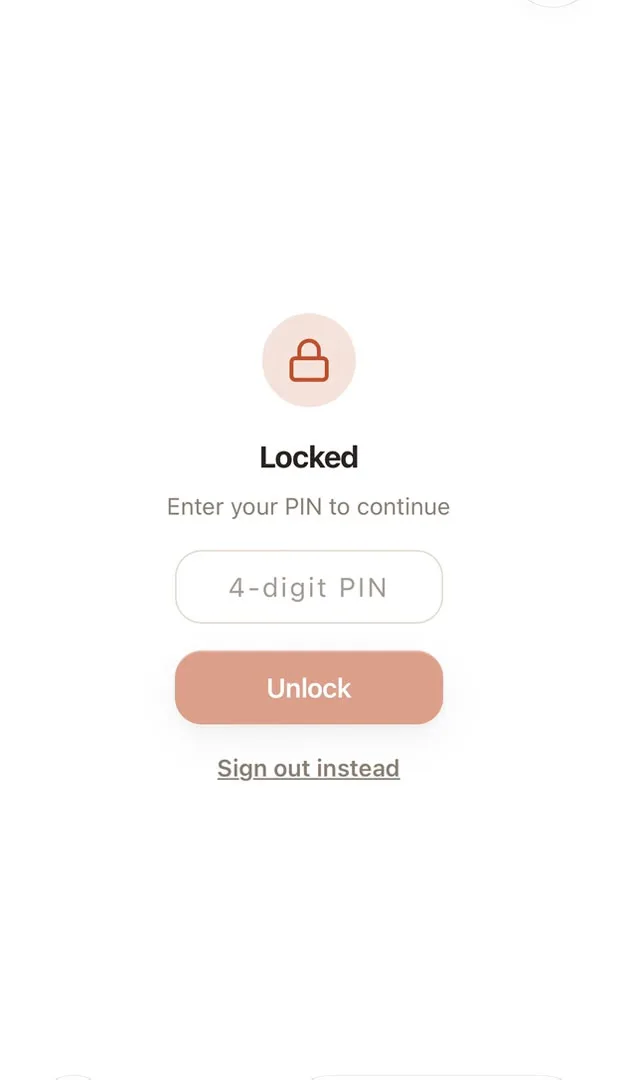
What the PIN is actually for
Beyond switching who's using a shared device, a PIN is Khanta's way of making sure a real person stood behind a specific action, the same reason a bank asks for a signature, not just whoever's holding the pen. One place this already matters: you can't open or hand over a shift without a PIN set; shift totals are exactly the kind of thing that needs to be traceable to a real person, not just "whoever was logged in."
The same idea is worth reaching for anywhere money or stock could quietly go missing without it: a voided sale, a discount past what a cashier would normally give, stock written off as damaged or stolen. If more than one person can act on your shop's account, a PIN is what makes "who actually did this" a real answer instead of a guess.